
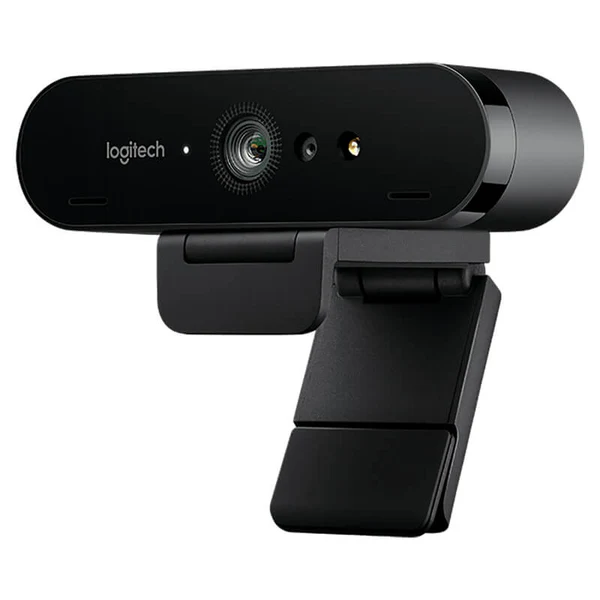


Logitech BRIO 4K Ultra HD Webcam
The Logitech BRIO 4K Ultra HD Webcam is built for people who want a clean, professional look on calls. It’s a strong fit for office meetings, interviews, online teaching, and content creators who want greater detail than a standard 1080p webcam. You get sharp 4K video support, smart lighting with HDR, and flexible framing so you can look your best in different rooms.
Why it’s worth it
Sharper, more “real” video: 4K support adds detail that looks premium on modern screens.
Better in tough lighting: RightLight 3 with HDR helps balance bright windows and dim rooms.
Flexible framing for any desk: switch between 65°, 78°, and 90° field of view.
Key specs, made simple
Video: 4K Ultra HD up to 30fps (plus Full HD 1080p options up to 60fps)
Lighting: RightLight 3 with HDR
Zoom: up to 5x digital zoom (Full HD)
Field of view: adjustable 65° / 78° / 90°
Focus: autofocus
Audio: dual omnidirectional microphones with noise cancellation
Security: Windows Hello facial recognition (infrared + optical sensors)
Privacy: removable privacy shutter
Cable: 2.2m USB-A to USB-C cable
Mounting: adjustable clip + tripod mount options
Extras: carrying case included
Built for pro calls, not just “it works”
If your work depends on how you show up on camera, BRIO helps you look more polished. The 4K option can make fine details, like text on a whiteboard or your face in a wider shot, look cleaner. For everyday meetings, many people still choose 1080p for a smooth, sharp picture, and BRIO supports that too.
RightLight 3 HDR in plain words
HDR is useful when the room lighting is uneven. Think: a bright window behind you, or a strong overhead light. RightLight 3 with HDR aims to keep your face clear without blowing out the background.
Choose your field of view
65°: tighter frame for solo calls and interviews
78°: balanced everyday view
90°: wider for small groups or showing more of the room/whiteboard
That flexibility is handy if you change desks, switch between laptop and monitor, or share a space.
Setup and connectivity tips
BRIO connects over USB and is easy to use for meetings and recording. For 4K recording/streaming, many listings note you’ll want a USB 3.0 port with compatible software. If you’re not using 4K, it can still work well at lower resolutions on typical setups.
Fit and compatibility
BRIO is commonly listed with broad support across Windows and macOS, and is often positioned for business apps and video platforms used for work calls. It’s also frequently mentioned with enterprise-friendly compatibility like Skype for Business and other meeting platforms.
What to check before you buy
1) Do you really need 4K?
If you’re mainly on Zoom/Teams calls, 1080p is often enough. Choose BRIO when you want better low-light performance, flexible framing, and a more premium image overall.
2) Your USB port and cable run
To use 4K smoothly, plan for a modern USB port (often USB 3.0). The included 2.2m cable helps if your PC is under the desk.
3) Your framing style
If you sit close to the screen, 65° can look more professional. If you share the frame, 90° is useful.
4) Privacy needs
If you want a quick physical cover after meetings, the included privacy shutter is a simple win.
Optional FAQ
Q: Is BRIO good for office meetings and interviews?
A: Yes. It’s built for a clean, business-ready look, with HDR lighting help and adjustable framing.
Q: Do I need USB 3.0 for BRIO?
A: For 4K recording/streaming, a USB 3.0 port is commonly recommended. For lower resolutions, it can still work well on standard setups.
Kraod. COD nationwide. Returns 7 days. Same-day Lahore only. Nationwide delivery usually takes 3–4 working days. Warranty: official warranty where available + store warranty support. Prices may vary by stock/variants.
Ready to upgrade your call quality? Add the Logitech BRIO 4K to the cart and check out in minutes.








Reviews
There are no reviews yet.